File Link Viewing Process
When you open a file link shared via [Copy Link], you will be taken to the file viewing screen to check whether you can view the file, and then you can open the file. This document explains the progress screen and guidance text displayed when accessing via the link. Please refer to the "Sharing and Collaboration Guide" for instructions on how to create a link.
1. Procedure
- When you open the link, it checks your login status. If you are not logged in, please log in first.
- "Checking file information." On the screen, I check the file information and my permissions.
- Once the verification is complete, open the file in a manner appropriate to your permissions. The priority of the opening methods is the same as in the "File Viewing and Editing Guide."
- If the opening is successful, "Successfully opened." will be displayed.

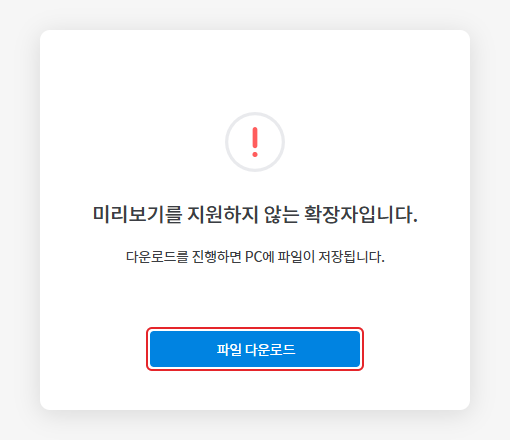
- If you do not have viewing permissions or if the viewer does not support the file extension, the download button will be displayed if you have download permissions.
- Opening the folder link will navigate to the corresponding folder screen. If you do not have access permission to the folder, "This folder cannot be accessed." will be displayed.
- You can only create links for files and folders in secure storage.
2. Screen by Status
| status | Screen text | Button · Action |
|---|---|---|
| Checking | Checking file information. | - |
| View successful | Successfully accessed. | - |
| Temporary Error | Failed to open the file due to a temporary error. Please try again later. | Reopen the link shortly |
| Account linkage required | Account linking has not been completed. Account linking is required to use the shared files. | [Move to Account Linking Page] (OneDrive · SharePoint · Google Drive Files) |
| Synchronization needed | This file has not been synchronized. It can be viewed after synchronization is complete. | [File Synchronization Start] |
| Synchronizing | Syncing (display file name) | Automatically opens when completed |
| Synchronization failed | File synchronization has failed. Please try again later or re-upload the file to use it. | Request to re-upload to the file owner |
| Permission Denied (Downloadable) | You do not have permission to open the file. Viewing is restricted, but you can download and save it to your PC. | [File Download] |
| Permission Denied | You do not have permission to open the file. Please contact the administrator to request permission. | Requesting Permissions from the Administrator |
| Preview not available (downloadable) | This file type does not support preview. If you proceed with the download, the file will be saved to your PC. | [File Download] |
| Preview not available (Download not available) | This file extension is not supported for preview. If you wish to download it, please contact the administrator to request permission. | Requesting Permissions from the Administrator |
| Downloading in progress | The download is in progress. | - |
| Download complete | The download is complete. | - |
| Download failed | Download failed. Please try again later. | Try again later. |
| Approval Request | Request completed | Storage with approval applied. Refer to "Approval Request Guide" |
| Folder access failed | Folder move failed | Check link path |
| Folder Access Restriction | This folder is inaccessible. Please contact the administrator to request permission. | Requesting Permissions from the Administrator |
| No files or folders | The file or folder has been deleted, and the specified path cannot be found. | Check with the file owner |
3. Reference
- When opened via a link, SHIELD Viewer and the web office open in the current window instead of a new window. Files opened with the local Office app will launch the app.
- Users who receive the link must also have storage access rights for the file. Personal files can only be opened by other users if the owner has set up file sharing.
- To copy a link, please refer to "Sharing and Collaboration Guide > Copy Link and File Sharing".